Creating the Material Design Ripple Effect with CSS and JavaScript

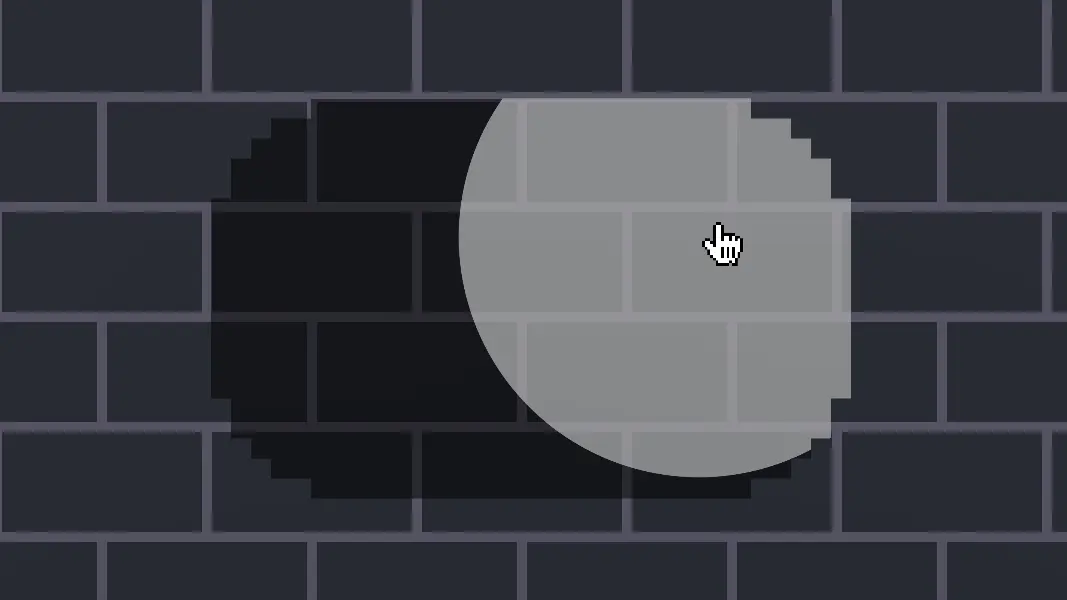
How to create the ripple effect of Android Material design with CSS and JavaScript dynamically for any element.
This blog post is about creating the ripple effect found in Google's Material Design. I got my inspiration from this tutorial on css-tricks.com by Bret Cameron, but I made some improvements to it myself.
After reading this blog post, you'll be able to apply the ripple effect to pretty much every element dynamically with JavaScript. It will look something like this:
<div
  class="element"
  onPointerDown={(e) => createRipple(e)}
>
  Click me!
</div>
The createRipple(e) function will basically add a child element with a class of ripple to the element and remove it after a certain action. While the ripple effect exists, the HTML looks like this:
<div
  class="element"
  onPointerDown={(e) => createRipple(e)}
>
  <span class="ripple" />
  Click me!
</div>
And the CSS looks like this:
.element {
  position: relative;
  overflow: hidden;
  cursor: pointer;
}

.ripple {
  position: absolute;
  border-radius: 50%;
  background-color: rgba(255, 255, 255, 0.5);
  opacity: 1;
  transform: scale(0);
  animation: ripple 600ms linear forwards;
}

@keyframes ripple {
  to {
    transform: scale(3);
  }
}
All you have to do, is to give the element a position of relative, an overflow of hidden and, to give it the feel of a button, a cursor of pointer. After that you can call the createRipple(e) function when the element is clicked. Now let's look at what exactly this function does:
const createRipple = (event: React.MouseEvent<Element, MouseEvent>) => {
  // Create ripple
  const button = event.currentTarget as HTMLElement;
  const ripple = document.createElement("span");

  const diameter = Math.max(button.clientWidth, button.clientHeight);
  const radius = diameter / 2;

  ripple.style.width = ripple.style.height = `${diameter}px`;
  ripple.style.left = `${
    event.clientX - button.getBoundingClientRect().left - radius
  }px`;
  ripple.style.top = `${
    event.clientY - button.getBoundingClientRect().top - radius
  }px`;
  ripple.classList.add("ripple");

  // Add ripple
  button.insertBefore(ripple, button.firstChild);
}
Right now the ripple effect looks like this:
As you can see, the ripples don't disappear and stack on top of each other.
Let's solve this by adding a fadeOutRipple() function:
const fadeOutRipple = (
  button: HTMLElement,
  handleFadeOutRipple: () => void,
  ripple: HTMLSpanElement,
  animationStart: number
) => {
  const animationInterrupt = Date.now();
  let remainingTime = 600 - (animationInterrupt - animationStart);
  if (remainingTime < 200) remainingTime = 200;
  ripple.style.transition = `opacity ${remainingTime}ms linear`;
  if (ripple) ripple.classList.add("ripple-fade-out");
  const removeRipple = async () => {
    await new Promise((res) => setTimeout(res, remainingTime));
    if (ripple) ripple.remove();
  };
  removeRipple();
  button.removeEventListener("pointerup", handleFadeOutRipple);
  button.removeEventListener("pointercancel", handleFadeOutRipple);
  button.removeEventListener("pointerleave", handleFadeOutRipple);
};
This function gets the ripple that it should remove and the time the ripple was created as parameters. Based on the animation start, it will calculate the remaining time for the fade out animation.
We also pass the button element and the handleFadeOutRipple() function as parameters to the fadeOutRipple() function, so we can remove the event listeners at the end of the process, that we will add in the next step.
Now, at the end of the createRipple(e) function, we create a handleFadeOutRipple() function that calls the fadeOutRipple(). Then we add the handleFadeOutRipple() function to the following event listeners:
pointerup: Thepointerupevent is fired when a pointer is no longer active.pointercancel: Thepointercancelevent is fired when the browser determines that there are unlikely to be any more pointer events, or if after thepointerdownevent is fired, the pointer is then used to manipulate the viewport by panning, zooming, or scrolling.pointerleave: Thepointerleaveevent is fired when a pointing device is moved out of the hit test boundaries of an element.
const createRipple = (event: React.MouseEvent<Element, MouseEvent>) => {

  ...

  // Add listeners to make the ripple effect fade out
  const animationStart = Date.now();

  const handleFadeOutRipple = () => {
    fadeOutRipple(button, handleFadeOutRipple, ripple, animationStart);
  };

  button.addEventListener("pointerup", handleFadeOutRipple);
  button.addEventListener("pointercancel", handleFadeOutRipple);
  button.addEventListener("pointerleave", handleFadeOutRipple);
};
That's what the finished ripple effect looks like: